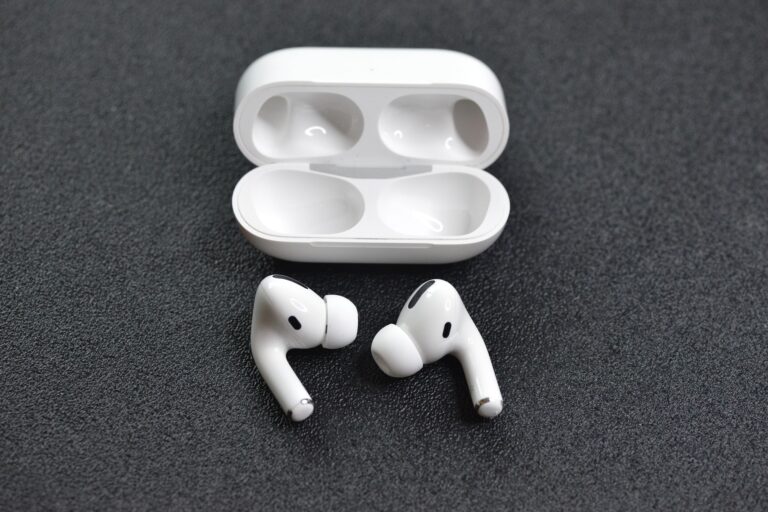
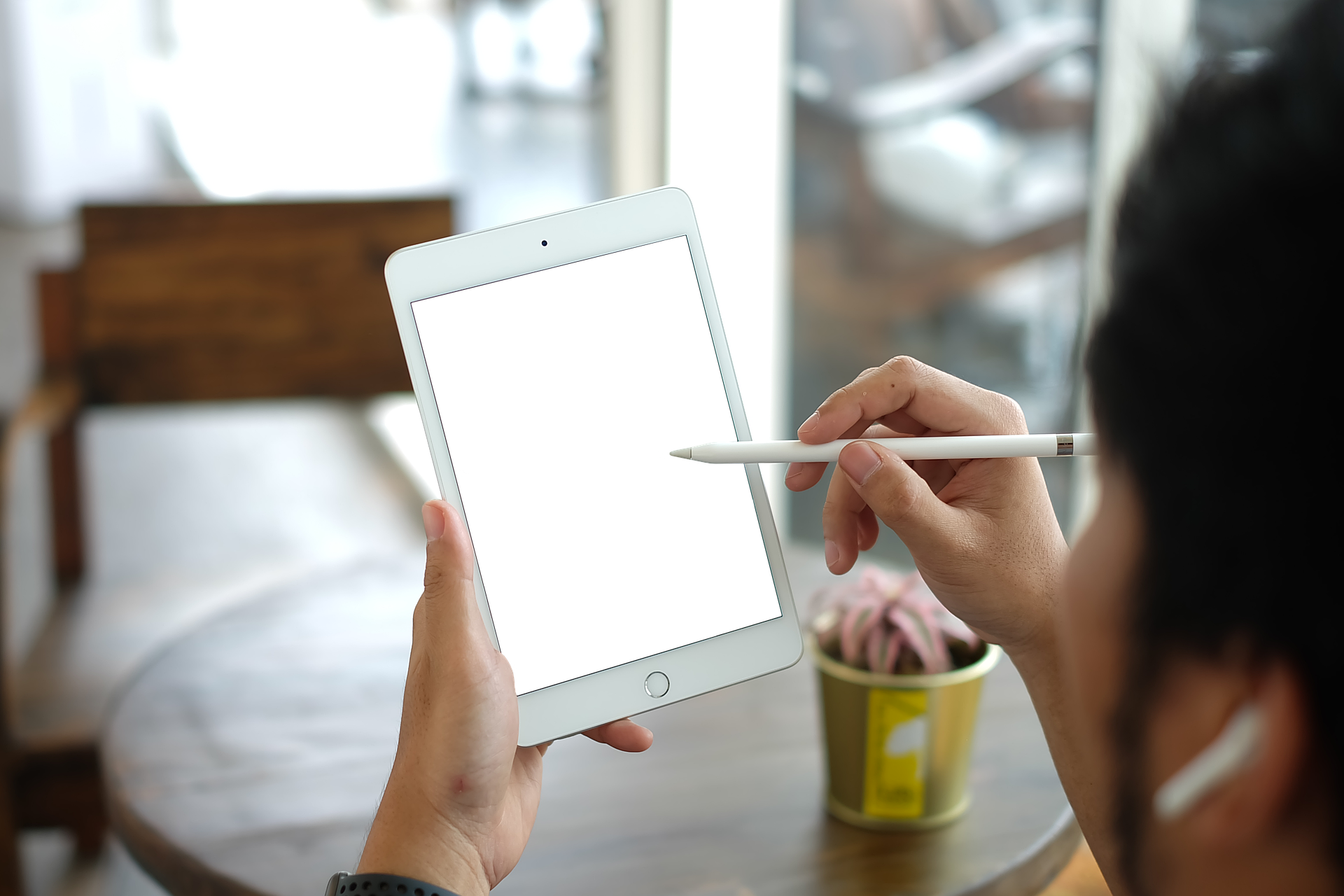
There is nothing quite like the feeling of unboxing a fresh pair of high-performance earbuds. Whether you’ve just grabbed a pair of Jesebang sport earbuds with those secure ear hooks or a sleek set of TWS buds for your daily commute, the goal is the same: getting that crisp, immersive sound flowing from your iPad as quickly as possible.
The iPad has evolved into a powerhouse for both productivity and entertainment. From editing videos in LumaFusion to catching up on Netflix during a flight, your audio experience defines your immersion. However, if you are staring at a “Searching for devices…” spinning wheel, the excitement can quickly turn into a headache. In this guide, we’ll walk through exactly how to set up earbuds on iPad so you can stop troubleshooting and start listening.
Preparing Your Earbuds for the First Connection
Before we dive into the iPad settings, we need to ensure your hardware is ready to talk to the tablet. It sounds simple, but most pairing issues stem from “power anxiety”—the device simply doesn’t have enough juice to broadcast a strong Bluetooth signal.
Check Your Battery Levels
Ensure your earbuds and their charging case are at least 50% charged. For Jesebang users, our LED power displays make this easy to verify at a glance. Low battery can lead to “ghosting,” where the iPad sees the device but fails to complete the handshake.
Entering Pairing Mode
This is the most critical step in learning how to set up earbuds on iPad. Most modern TWS earbuds enter pairing mode automatically the moment you open the case or remove the buds. If they don’t, you’ll usually need to:
- Press and hold the multi-function button for 3–5 seconds.
- Look for a flashing LED indicator (usually blue and red).
- Ensure they aren’t currently “stolen” by your phone’s Bluetooth connection nearby.
How to Set Up Earbuds on iPad: Step-by-Step
Now that your earbuds are “searching” for a friend, it’s time to tell your iPad to look for them. Follow these steps to establish a rock-solid connection.
1. Open the Bluetooth Settings
Navigate to the Settings app on your iPad (the gear icon). On the left-hand sidebar, tap Bluetooth.
2. Toggle Bluetooth On
Make sure the Bluetooth toggle is switched to On (it should show green). Your iPad will immediately begin scanning for nearby “discoverable” devices.
3. Select Your Device
Under the “Other Devices” list, you should see your earbud model name appear (e.g., Jesebang IT100). Tap the name. Within a few seconds, the name will jump up to the “My Devices” section and display a status of Connected.
Optimizing Your Audio Experience
Once you know how to set up earbuds on iPad, you shouldn’t just stop at the connection. To get the most out of Jesebang’s high-fidelity drivers, you should tweak a few iPad-specific settings.
Customizing the Volume Limit
To protect your hearing during long study sessions, go to Settings > Sounds > Headphone Safety. Here, you can enable “Reduce Loud Sounds” and set a decibel limit. Our earbuds provide excellent passive noise isolation, so you’ll find you don’t need to crank the volume to the max to hear every detail.
Using the Control Center for Quick Switches
Once paired, you don’t need to go back into Settings every time. Swipe down from the top-right corner of your iPad screen to open the Control Center. Tap the AirPlay icon (the circles with a triangle) in the music widget to quickly switch audio output between your iPad speakers and your earbuds.
Pro-Tips for Fitness Enthusiasts
If you are using your earbuds for workouts, remember that the iPad-to-earbud connection is only half the battle. To maintain that connection during high-intensity movement:
- Firmware Updates: Occasionally check the manufacturer’s app (if applicable) for firmware updates. These often improve Bluetooth 5.3 stability.
- The “Sweat Factor”: If you’re using Jesebang’s IP7 waterproof earbuds, you’re safe from moisture, but sweat on the iPad screen can sometimes cause erratic touch behavior. Use the physical or touch controls on the earbuds themselves to skip tracks rather than touching the iPad with wet hands.
- Range Awareness: While Bluetooth 5.3 offers impressive range, staying within 30 feet of your iPad ensures zero latency or stuttering, especially if there are walls between you and your device.
Troubleshooting Common Pairing Issues
If you’ve followed the steps on how to set up earbuds on iPad and it’s still not working, don’t panic.
- Forget the Device: If the connection is glitchy, tap the “i” icon next to the device name in Bluetooth settings and select Forget This Device. Then, restart the pairing process from scratch.
- Reset the Earbuds: Place the buds in the case and hold the reset button (or the touch sensors) according to your manual. This clears the internal memory of previous pairings.
- iPad Restart: A simple restart of your iPad can clear the cache of the Bluetooth module, often solving “invisible device” syndrome.
By following this guide, you ensure that your Jesebang earbuds and iPad work in perfect harmony, providing the soundtrack to your productivity or the fuel for your next PR in the gym.