
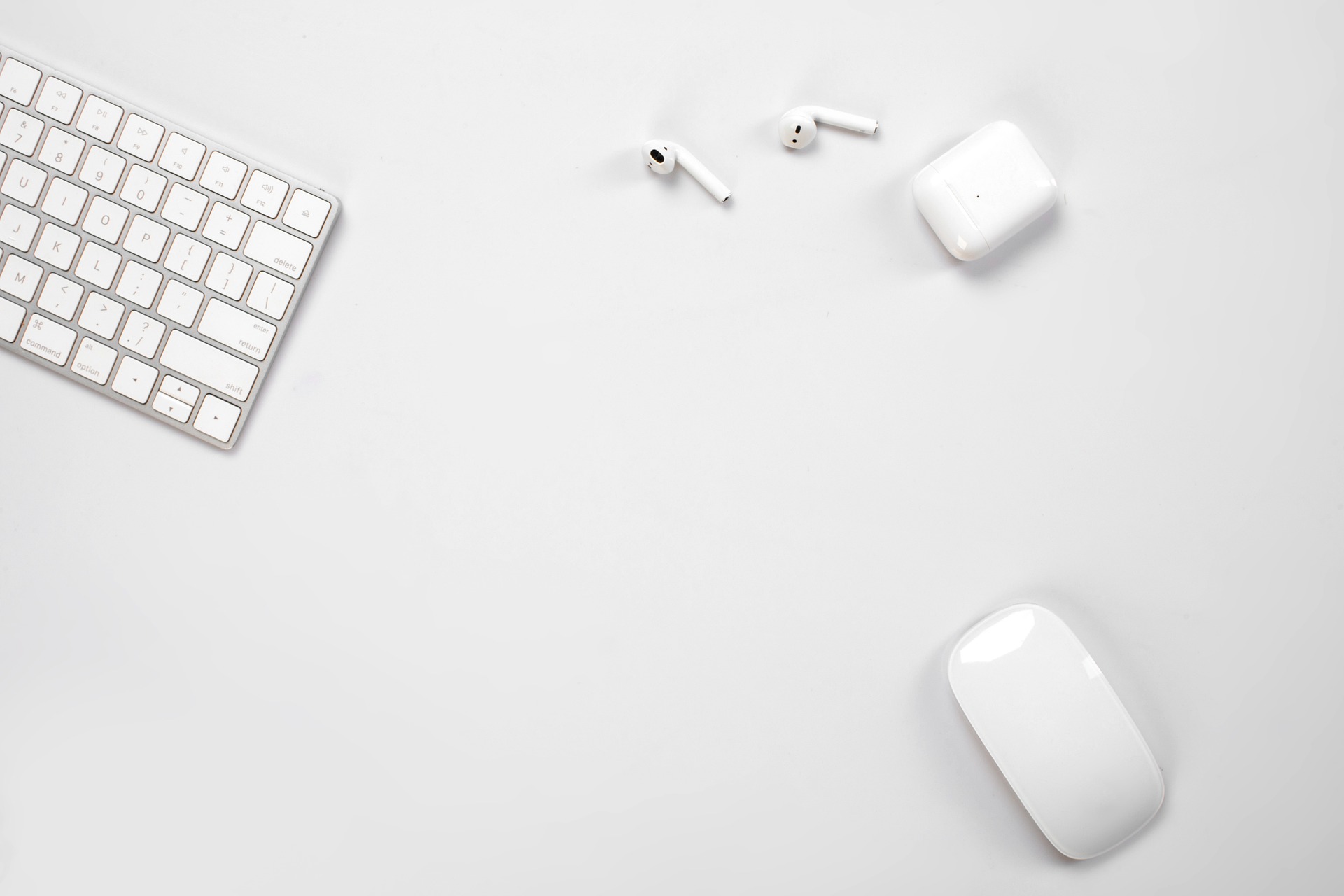
There is nothing quite like the feeling of settling into your favorite workspace, opening your laptop, and getting ready to dive into a productive flow state. Whether you are gearing up for a high-stakes Zoom meeting or setting the tempo for a late-night editing session with a heavy-bass playlist, your audio is the bridge between you and your focus. However, we have all been there: you put your earbuds in, wait for the chime, and… nothing. Silence.
Learning how to connect earbuds to mac computer systems should be a seamless experience, but sometimes the handshake between Bluetooth devices and macOS can be a bit finicky. In this guide, we aren’t just giving you a dry list of steps. We are going to walk through the “why” and “how” of the process, ensuring your Jesebang earbuds—or any TWS device—stay locked in with crystal-clear stability.
The Initial Handshake: Pairing Your Earbuds
Before your Mac can talk to your earbuds, they need to be introduced. This is known as “Pairing Mode.” Most modern Jesebang models enter this mode automatically the moment you open the charging case or remove the buds, but if you’ve previously connected them to your phone, they might be “clinging” to that older connection.
Step-by-Step Connection Guide
- Prep the Earbuds: Place your earbuds in their charging case, then open the lid. If they don’t have a dedicated pairing button, they are likely searching for a signal already.
- Open System Settings: On your Mac, click the Apple Menu () in the top-left corner and select System Settings (or System Preferences on older macOS versions).
- Navigate to Bluetooth: Locate the Bluetooth icon. Ensure the toggle is switched to On.
- Find Your Device: Look at the list under “Nearby Devices.” You should see your Jesebang model appear.
- Click Connect: Hover over the device name and click the Connect
Once the status changes to “Connected,” you are officially in the game. But knowing how to connect earbuds to mac computer hardware is only half the battle; ensuring the audio actually routes through them is the next step.
Optimizing Audio Output and Quality
Sometimes, macOS will show a device as “Connected,” but the sound continues to blast through the laptop speakers—an embarrassing mistake in a quiet office! To prevent this, you should familiarize yourself with the Sound Output menu.
Switching Your Output Source
You can quickly verify your output by clicking the Control Center icon (the two toggle sliders) in the top-right menu bar of your Mac. Click on Sound and ensure your earbuds are selected.
Why Bluetooth 5.3 Matters
If you are using Jesebang’s latest lineup, you’re likely benefiting from Bluetooth 5.3. Older Macs or cheaper earbuds might use 5.0 or lower, which leads to “audio lag” (where the lips on the screen don’t match the sound in your ears). By using updated TWS technology, the synchronization between your Mac and your ears is virtually instantaneous, making it perfect for video editing or gaming.
Troubleshooting Common Connection Hurdles
Even if you know how to connect earbuds to mac computer devices perfectly, technology loves to throw a curveball. If your Mac isn’t “seeing” your earbuds, don’t panic.
- The “Multipoint” Conflict: Most earbuds try to connect to the last device they saw. If your earbuds are currently connected to your iPhone, the Mac might not be able to “grab” the signal. Turn off Bluetooth on your phone temporarily to force the earbuds to look for the Mac.
- The NVRAM/PRAM Reset: On older Intel-based Macs, if Bluetooth is glitching, a quick restart or resetting the NVRAM can clear the hardware cache.
- Interference: If you are surrounded by dozens of other wireless signals (like in a crowded gym or a busy office), move closer to your Mac for the initial pairing.
Pro-Tip: Maintaining Your Connection “Health”
To keep your connection seamless, we recommend “forgetting” the device once every few months and re-pairing it. This clears out old communication logs and keeps the latency low. Additionally, ensure your Mac is updated to the latest macOS version, as Apple frequently releases Bluetooth stability patches.
At Jesebang, we design our ear-hook and in-ear models with high-gain antennas to ensure that once you learn how to connect earbuds to mac computer setups, the connection remains rock-solid, even if you stand up to grab a coffee across the room.
Elevate Your Workspace
Now that your audio is synced, you can enjoy the freedom of wire-free movement. Whether it’s the IP7 waterproof rating protecting your buds from a spilled desk water or the ergonomic fit keeping you comfortable through a four-hour marathon of meetings, your tech should work for you—not the other way around. Ready to experience the difference? Check out our latest TWS arrivals and find your perfect pair.