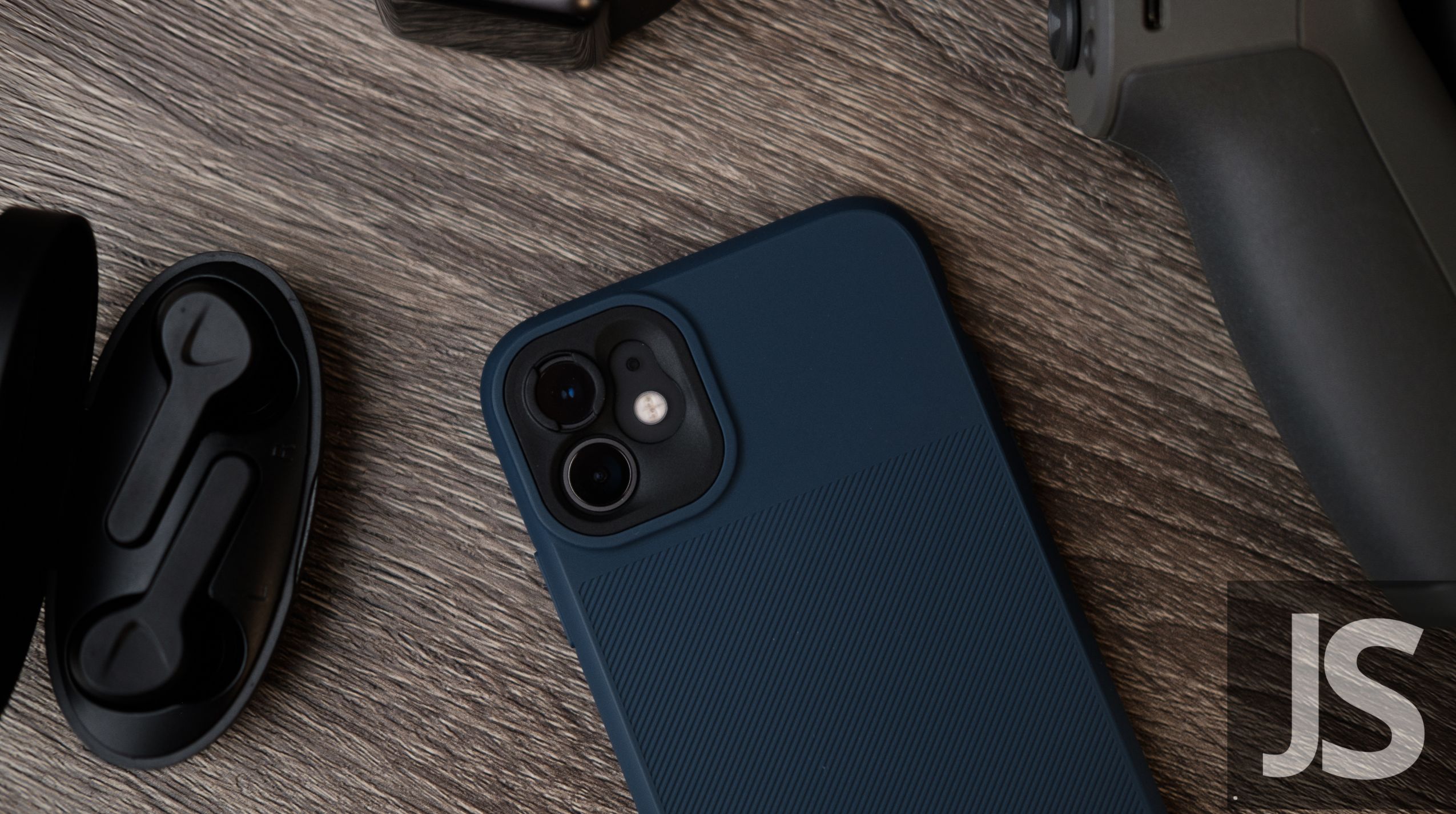
There is nothing quite like the feeling of unboxing a brand-new pair of earbuds, ready to dive into your favorite high-tempo workout playlist or a captivating podcast. You’ve got your iPhone in one hand and your sleek new Jesebang earbuds in the other, but then—the hesitation sets in. Will they sync? Why isn’t the Bluetooth menu showing the device?
Pairing Bluetooth peripherals used to be a finicky game of “wait and hope,” but with modern Bluetooth 5.3 technology, the process has become incredibly streamlined. Whether you are a long-time iOS user or you’ve just made the switch to Apple, getting your audio gear to talk to your phone should be the easiest part of your day.
In this guide, we’ll walk you through the standard pairing process, troubleshoot the common “invisible device” glitch, and show you how to optimize your connection for the best possible acoustic experience.
Step-by-Step: The Initial Handshake
To get started, you need to ensure both your iPhone and your earbuds are ready to “meet.” iPhones are generally very proactive about searching for new devices, but they require the earbuds to be in Pairing Mode.
1. Prep Your iPhone
Navigate to your Settings app and tap on Bluetooth. Ensure the toggle is switched to On (green). Your iPhone will immediately start a spinning wheel under “Other Devices”—this is the phone actively “listening” for a signal.
2. Activate Pairing Mode
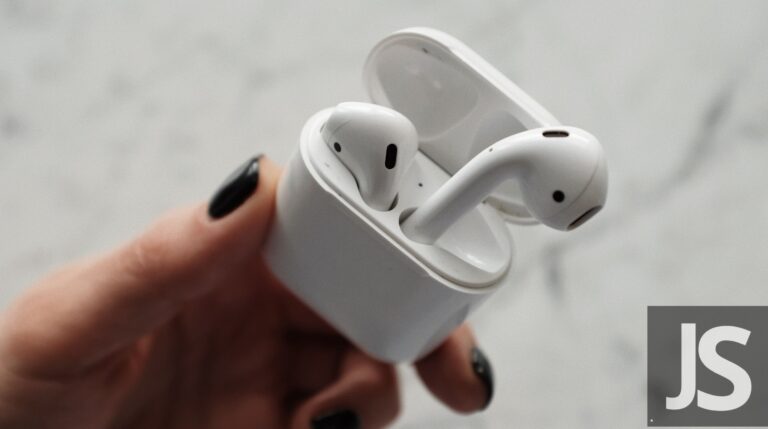
For most Jesebang models, this is as simple as opening the charging case. If it’s your first time connecting, the earbuds will automatically enter pairing mode. You’ll usually see a small LED indicator flashing, signaling that the Bluetooth chip is broadcasting.
Pro Tip: If you’ve previously connected these earbuds to a laptop or another phone, they might be “holding onto” that old connection. Turn off Bluetooth on your other devices to ensure the earbuds are free to find your iPhone.
3. Select and Confirm
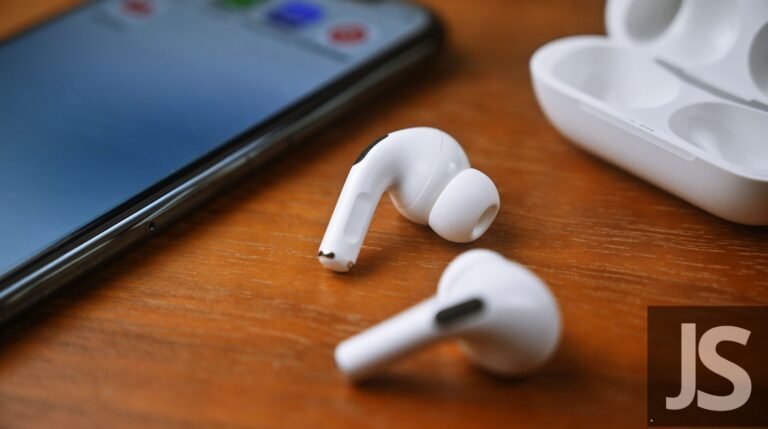
Under the “Other Devices” list on your iPhone, look for your model name (e.g., Jesebang T19 or BD86). Tap the name. Within a second or two, the name will jump up to the “My Devices” section and display a status of Connected.
Why Bluetooth 5.3 Matters for iPhone Users
If you’ve ever experienced audio lag while watching a Netflix video or noticed your battery draining faster than usual, your Bluetooth version might be to blame.
Jesebang utilizes the latest Bluetooth 5.3 chips, which offer significant advantages over the older 5.0 or 4.2 standards found in many budget earbuds. For an iPhone user, this means:
- Instant Reconnection: Once paired the first time, your earbuds will link to your iPhone the moment you flip the case lid open—often before you even get them into your ears.
- Zero Latency: High-speed data transfer ensures that the audio in your ears matches the video on your screen perfectly.
- Lower Power Consumption: You get more hours of playback without punishing your iPhone’s battery life.
Troubleshooting: What to Do If They Won’t Connect
Sometimes technology likes to be difficult. If your iPhone isn’t seeing your earbuds, don’t panic. Usually, it’s a minor communication “hiccup” that can be fixed in seconds.
The “Forget and Reset” Method
If the connection is stuttering or failing to initiate, follow these steps:
- Go to Settings > Bluetooth.
- Tap the “i” icon next to your earbud name.
- Select Forget This Device.
- Place your earbuds back in the case, leave the lid open, and hold the reset button (if applicable) or the touch sensors for 10 seconds until the lights flash.
- Re-pair from scratch.
Check the “Physical” Basics
It sounds simple, but check your battery levels. Most earbuds will deactivate their Bluetooth broadcast if the battery is below 10% to save power. Give them a quick 15-minute “Fast Charge” in the Jesebang case, and try again.
Maintaining a Healthy Connection
Once you’re connected, you want to keep that signal strong, especially if you’re heading to a crowded gym where dozens of other signals could cause interference.
Keep Your Firmware Updated
Apple frequently releases iOS updates that include “Bluetooth Stability” patches. Ensuring your iPhone is running the latest version of iOS is the best way to prevent random disconnections.
Clean Your Charging Pins
If only one earbud is connecting, it’s often because the other didn’t wake up. Use a dry cotton swab to gently clean the gold contact points on the earbuds and inside the charging case. If the earbud can’t “talk” to the case, it won’t know when to turn on and pair.
Mind the Environment
Bluetooth signals struggle to pass through water and human bodies. While Jesebang earbuds feature high-gain antennas to combat this, keeping your iPhone in a pocket on the same side as your “primary” earbud can help maintain a rock-solid connection during vigorous movement.
Connecting your earbuds to your iPhone is the gateway to a better workout and a more focused workday. By leveraging the power of Bluetooth 5.3 and following these simple maintenance steps, you ensure that your soundtrack never misses a beat.